Overview
Any export type in SFDC File Exporter can be converted into a recurring scheduled job. Rather than running an export manually each time, configure it once and the app handles it on your chosen cadence — daily, on a specific date, or using a fully custom cron expression.
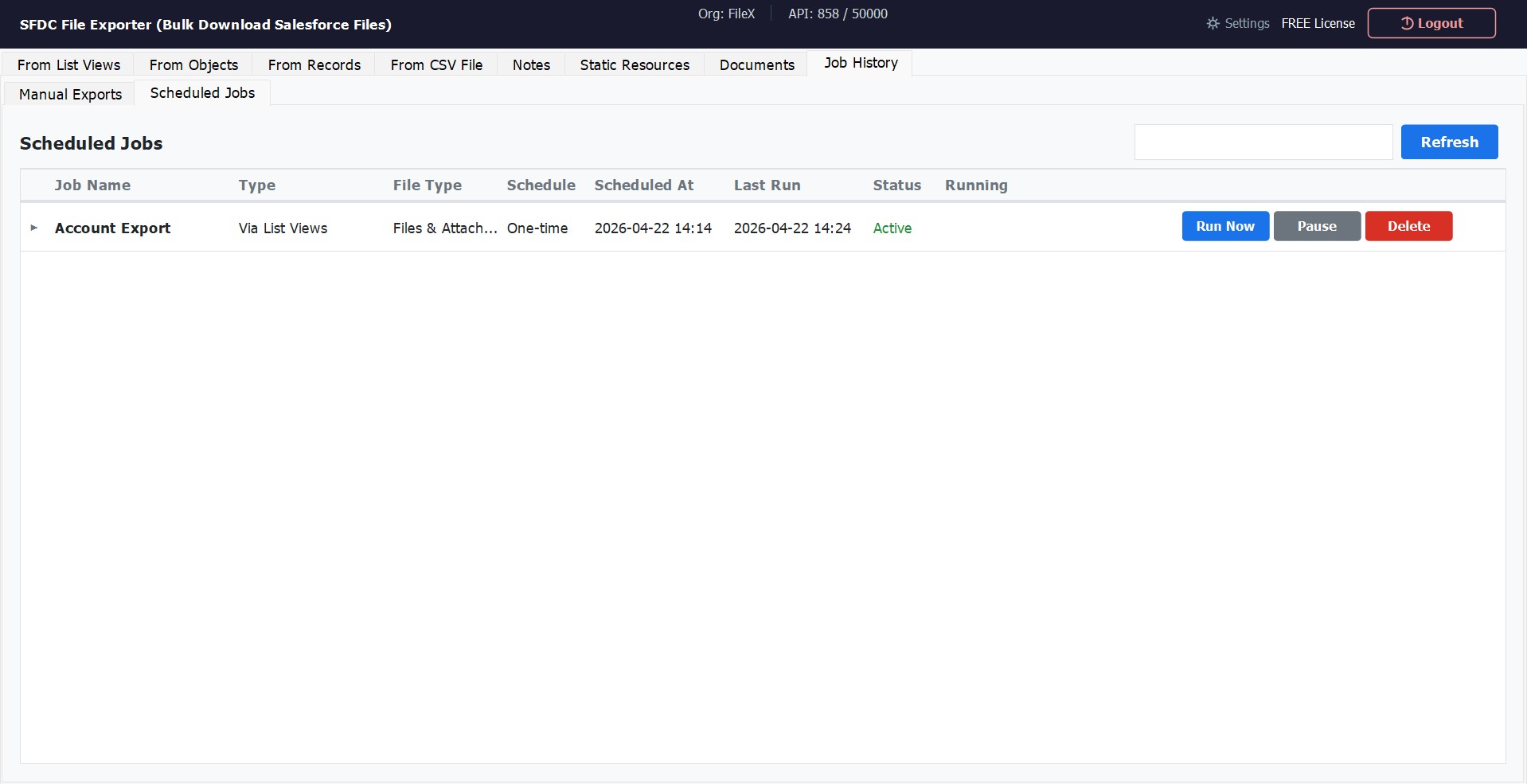
All scheduled jobs are tracked in the Job History dashboard, where you can monitor status, trigger a job early, pause it temporarily, or remove it entirely.
How to Schedule an Export
Scheduling works for every export method — List View, Object, Single Record, CSV, Notes, Static Resources, and Documents. Configure the export settings as usual, then use the Schedule button instead of Export to define the recurrence.
Configure Your Export
Set up the export as normal — select the export type, choose the Salesforce object or list view, apply any field-level filters, and select the output folder on your machine.
Click "Schedule" Instead of "Export"
Once the export is configured, click the Schedule button to open the scheduler dialog. This does not run the export immediately — it defines when it will run automatically.
Choose a Schedule Type
Select how often the job should run: Once (a single future run), Daily (every day at the same time), or Custom Cron for full cron expression control — for example, 0 2 * * 1 to run every Monday at 2 AM.
Set the Time
Pick the exact time for the job to run. For the Once schedule type, also select the target date. For Daily, the job fires at the same time every day from the day it is saved.
Enable Incremental Mode (Recommended)
Toggle Incremental Export on. Each scheduled run will then only download files added or modified since the previous successful run — keeping your local copy up to date without re-downloading the full archive every time. The app tracks the last export date automatically.
Save the Job
Click Save Schedule. The job is saved immediately and appears in the Job History dashboard. Its next scheduled run time is shown in the dashboard so you can confirm it was set correctly.
Automatic_Export_ prefix followed by the timestamp, so they are clearly distinguishable from manual runs (which use a Manual_Export_ prefix) inside your chosen output folder.
Schedule Types
SFDC File Exporter provides three scheduling modes to cover the most common automation needs — from a one-time future run to a fully customizable cron expression.
| Type | Description | Example Use Case |
|---|---|---|
| Once | Runs at a specific date and time, exactly one time. The job is automatically marked complete after it fires and will not repeat. | Export all files before a system migration on a specific date. |
| Daily | Runs every day at the configured time. Continues indefinitely until paused or deleted. | Download overnight backups of new case attachments every day at 1 AM. |
| Custom Cron |
Accepts a full five-field cron expression for precise scheduling.
Format: minute hour day-of-month month day-of-week.Example: 0 2 * * 1 = every Monday at 2 AM. |
Run a weekly archive every Monday morning, or a monthly export on the first of each month. |
minute (0–59), hour (0–23), day of month (1–31),
month (1–12), day of week (0–6, where 0 = Sunday).
Use * to mean "every". Common examples:
0 2 * * 1 — every Monday at 2 AM;
0 8 1 * * — 8 AM on the 1st of every month;
30 23 * * 1-5 — 11:30 PM on weekdays.
Job History Management
The Job History dashboard is the central place to monitor and control all your scheduled jobs. Each row shows the job name, export type, last run time, next run time, and current status. Three actions are available for every job:
| Action | Description |
|---|---|
| Run Now | Trigger a scheduled job immediately, regardless of its next scheduled time. The job's schedule is preserved — it will still run again at the next configured interval. |
| Pause | Temporarily suspend a job. It retains all its settings and its next run time is recalculated when unpaused. Use this when you need to halt a recurring job without losing its configuration. |
| Delete | Permanently remove a scheduled job and all its history entries. This action cannot be undone — if you need to recreate the job, you will need to configure it again from scratch. |
For a detailed breakdown of job statuses, run history, and log output, see the Job History documentation page.
Best Practices
These recommendations will help you get consistent, reliable results from scheduled exports over time — especially in orgs with large file volumes or tight API limits.
Always Enable Incremental Mode
For any recurring job, turn on Incremental Export. It skips files already downloaded in a previous run, cutting export time and Salesforce API consumption significantly — particularly important in orgs near their daily API limit.
Schedule During Off-Peak Hours
Set daily jobs to run overnight (e.g., 1–3 AM) when Salesforce API usage from other integrations is lowest. This reduces the chance of hitting concurrent API limits and keeps export speeds high.
Keep the App Running
SFDC File Exporter must be open for jobs to execute. For machine-level automation, configure the app to launch at Windows startup via Task Scheduler or the Startup folder, and leave it running in the background.
Use a Dedicated Output Folder
Point each scheduled job to its own output folder rather than a shared destination. This makes it easy to audit what each job has downloaded and avoids filename conflicts between separate scheduled runs.
Apply Filters to Narrow the Scope
Add field-level filters (such as CreatedDate or OwnerId) when configuring the export before scheduling. Narrower scopes mean fewer API calls per run and faster completion times.
Review Job History Regularly
Check the Job History dashboard periodically to confirm jobs are completing successfully. A job that consistently shows a missed run is a signal that the app was not running at the scheduled time.