The Salesforce Document object stores org-wide files in document libraries — not linked to individual records. This is a legacy storage type, but many orgs still hold important files there. SFDC File Exporter exports all Documents in their original format with full field-level filtering support.
What is the Document Object?
The Document object is Salesforce's original, legacy file storage system. Unlike modern
Salesforce Files (ContentDocument / ContentVersion), Document records are not
attached to individual parent records. Instead, they live in org-wide document libraries
(also called Document Folders) that are shared across the entire org.
Documents were the primary way to store and share files in Salesforce before the introduction of Salesforce Files (also known as the ContentDocument framework). Customers who adopted Salesforce before the Files feature was rolled out widely — typically before Salesforce Winter '16 — stored company documents, templates, images, and other assets as Document records. Many of these orgs still retain significant archives of files in Document libraries today.
Key Characteristics of the Document Object
| Characteristic | Details |
|---|---|
| Storage location | Org-wide Document Folders — not linked to any specific record (Account, Case, etc.). |
| Access model | Controlled by folder visibility (Public, Hidden, or Shared) and user roles, not by record sharing rules. |
| Typical content | Company templates, org-wide reference files, images, style sheets, and legacy business documents. |
| API object name | Document |
| Predecessor to | Salesforce Files (ContentDocument / ContentVersion), introduced with Salesforce Files Connect. |
How to Export Documents
Follow these steps to export all Salesforce Document records — or a filtered subset — from your org.
Select Export Type
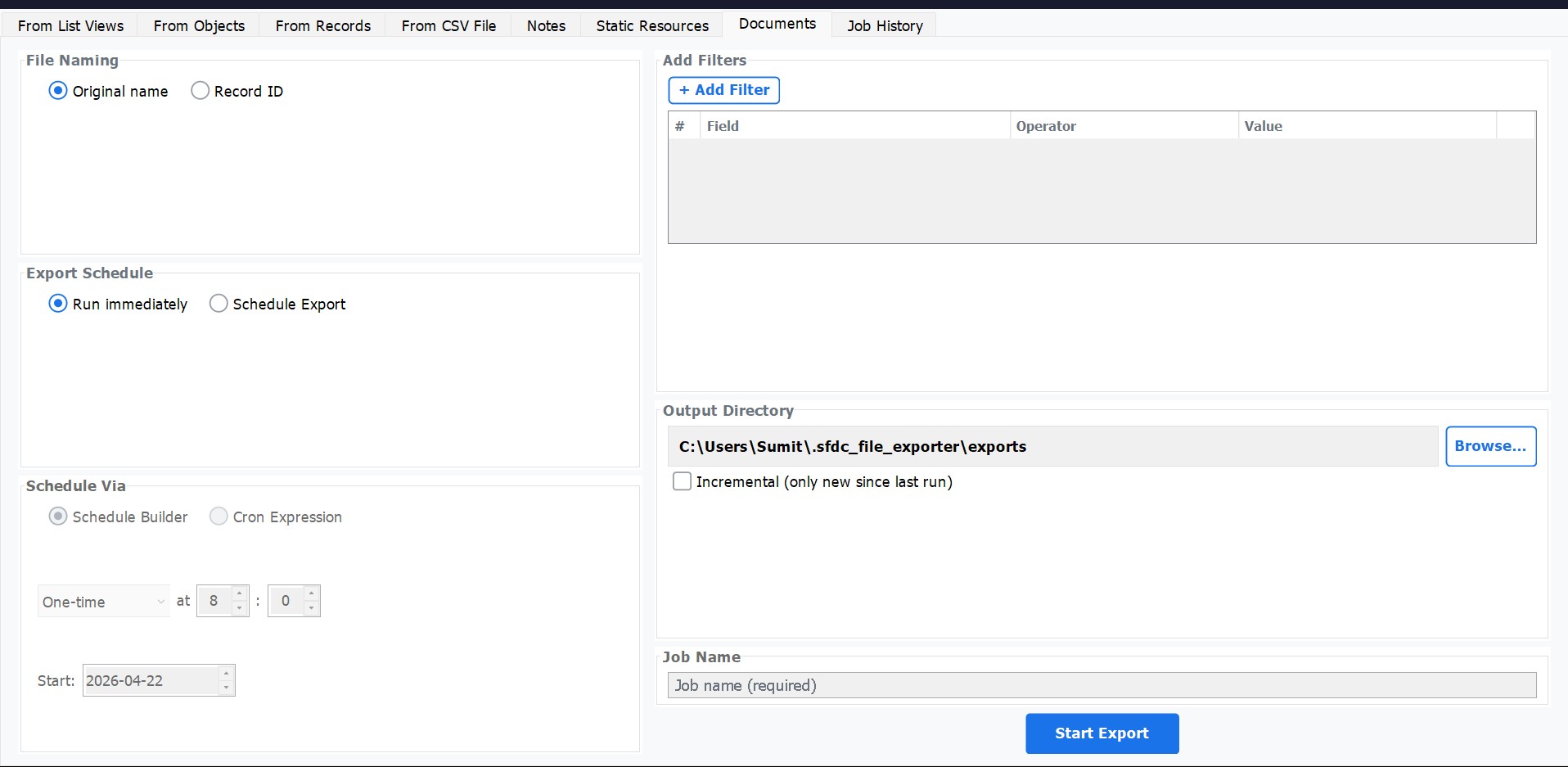
Open SFDC File Exporter and choose Export Documents from the main menu or the left-hand navigation panel. The Documents export screen will open.
Add Filters (Optional)
Narrow the export using field-level filters. Click Add Filter to define a condition. Each filter has three parts: a Field, an Operator (equals, contains, greater than, etc.), and a Value. Useful filter fields include:
FolderId— restrict to a specific document library folder.AuthorId— restrict to documents uploaded by a specific user.CreatedDate— export only documents created within a date range.Name— match documents by file name or partial name.Type— filter by file extension or MIME type (e.g.,pdf,docx).
Multiple filters are combined with AND logic. Leave blank to export all Document records.
Choose Run Mode
Select whether to run the export immediately or configure it as a recurring scheduled job. Click Export to run now, or click Schedule to set up an automatic recurring download. See Scheduled Exports for details.
Set Output Folder & Export
Click Browse to choose your local destination folder, then click Export. Original document file names are preserved exactly as stored in Salesforce. Monitor real-time progress in the progress panel — the log shows each file as it downloads.
Field-Level Filtering
SFDC File Exporter queries the Salesforce Document object using SOQL, so any standard or
custom field on the Document object can be used as a filter. Below are the most commonly used fields:
| Field | API Name | Example Use |
|---|---|---|
| Document Folder | FolderId |
Export only documents from a specific org folder (paste the Salesforce Folder ID). |
| Author / Owner | AuthorId |
Export files uploaded by a particular user (paste the User ID). |
| File Name | Name |
Filter by document name — use the contains operator for partial matches. |
| File Type / Extension | Type |
Restrict to a single format, e.g., pdf or xlsx. |
| Created Date | CreatedDate |
Download only documents created after a given date — useful for incremental archiving. |
| Last Modified Date | LastModifiedDate |
Capture recently updated documents since a last-sync point. |
| Is Public | IsPublic |
Filter to only publicly accessible documents across the org. |
Document
object in your org — including custom fields — can be used as a filter. The field list in the app
is populated live from your org's metadata.
Scheduling Document Exports
Like all export types in SFDC File Exporter, the Documents export can be saved as a recurring scheduled job. This is useful for orgs that periodically add new documents to their libraries and want to keep a local archive in sync without manual intervention.
To schedule a Document export, configure your filters and output folder as described above, then click Schedule instead of Export. Choose a frequency (Daily, Weekly, or a custom cron expression) and a run time. The job will appear in the Job History dashboard where you can monitor, pause, or delete it.