Overview
Salesforce stores rich text field content as HTML — headings, lists, tables, bold and italic text are all preserved as markup inside the field value. Inline images are not embedded in the HTML itself; instead Salesforce stores them as separate content records and references them via internal URLs.
SFDC File Exporter can read any rich text field from any standard or custom object, resolve those internal image references by downloading the image binaries directly from Salesforce, and render everything into a properly formatted PDF that faithfully reproduces the original layout — including images placed inline within the text.
This is useful any time you need an offline, printable, or archivable copy of structured data that lives in rich text fields — for example, Knowledge article bodies, case descriptions, contract clauses stored in custom fields, or product specification notes.
Supported Elements
The following HTML elements — all of which Salesforce's rich text editor can produce — are recognised and rendered in the exported PDF.
| Element | How it appears in the PDF |
|---|---|
H1 — H4 Headings |
Rendered at four distinct sizes with appropriate weight. H1 is the largest; H4 is close to body size but bold. Hierarchy is preserved. |
| Bold, Italic, Underline | Inline character formatting is preserved exactly. Combinations (e.g., bold-italic) are also supported. |
| Bullet and numbered lists | Unordered lists render with bullet markers; ordered lists render with sequential numbers. Nested lists are indented correctly up to three levels deep. |
| Tables | Table structure — rows, columns, and merged cells — is preserved. Column widths are distributed proportionally to fit the page. |
| Inline images | Images referenced inside the rich text field are downloaded from Salesforce during export and embedded directly in the PDF at their original dimensions, capped to the page width. |
| Hyperlinks | Links are rendered as underlined blue text in the PDF and remain clickable in PDF viewers that support hyperlinks. |
| Paragraphs | Standard paragraph spacing is applied between <p> blocks, producing readable vertical rhythm throughout the document. |
How to Use
Select the Object
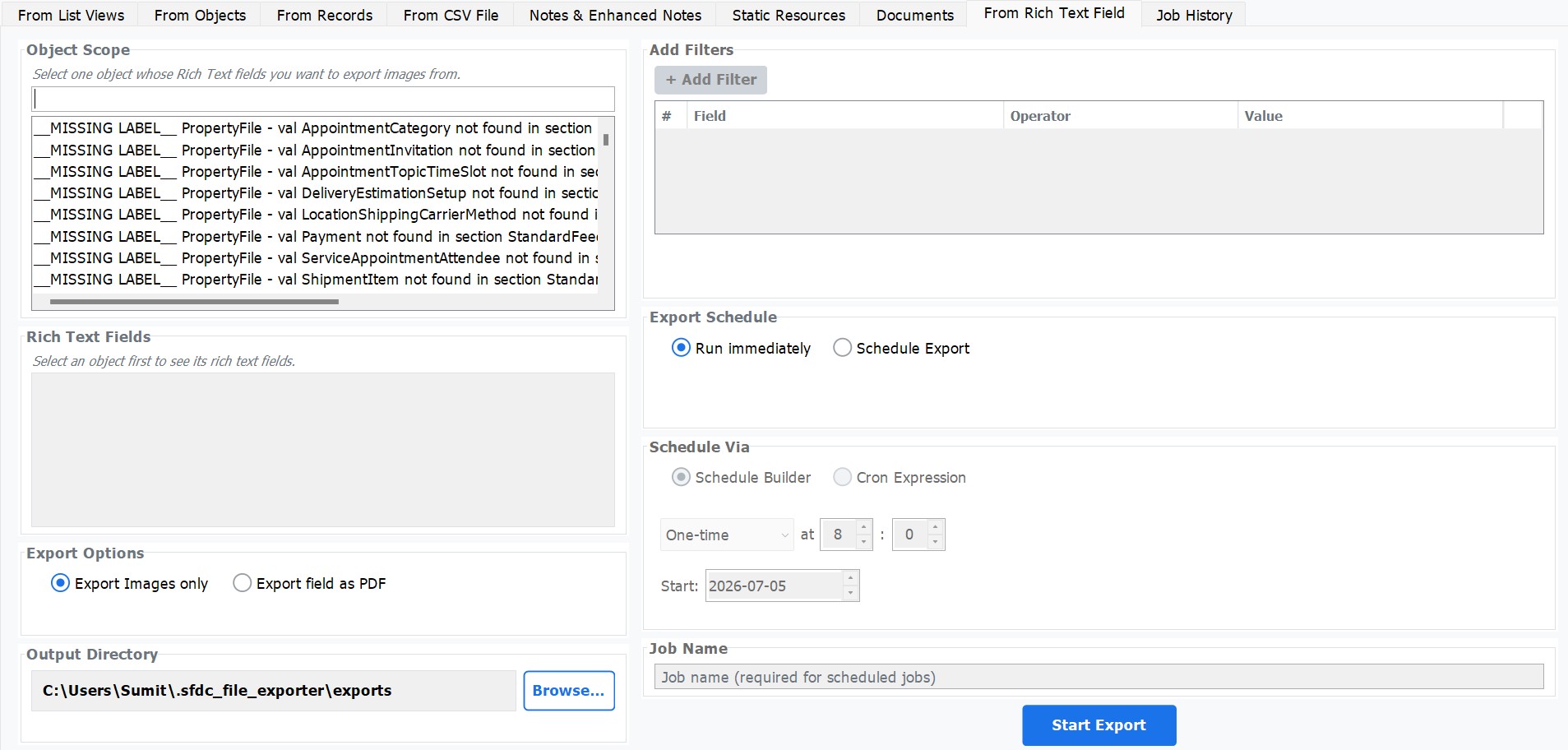
Open the Rich Text Fields tab. From the Object dropdown, choose the Salesforce object that contains your rich text field — for example, Knowledge__kav, Case, Opportunity, or any custom object.
Select the Rich Text Field
The Field dropdown is populated automatically with every rich text (HTML) field on the chosen object. Select the field whose content you want to export — for example, Description, Body__c, or Notes__c.
Optionally Filter Records
Use the filter builder to narrow which records are exported. Add one or more field-level conditions — for example, Status Equals Published — to target only the records you need. Leave the filter empty to export all records from the object.
Choose the Output Folder
Click Browse and select the local folder where the exported PDFs should be saved. The app will create subfolders automatically — you do not need to pre-create any directory structure.
Click Export
Click the Export button to begin. A progress dialog shows the current record being processed, the number of records completed, and any records skipped because their rich text field was empty.
Review the Output
When the export finishes, open your output folder. Each record is stored in its own subfolder named after the Record Id. Inside that folder is a further subfolder named after the Field API name, which contains the exported export.pdf file.
Output Structure
The app creates a predictable folder hierarchy inside your chosen output folder. Each record gets its own subfolder, and within it a subfolder named after the exported field. This makes it straightforward to locate, archive, or process the PDFs programmatically.
001xx000003GYk2AAG/ <-- Record Id
Body__c/ <-- Field API Name
export.pdf
001xx000003GYk3AAG/
Body__c/
export.pdf
001xx000003GYk4AAG/
Body__c/
export.pdf
Limitations
The rich text export works reliably for the vast majority of Salesforce rich text content. A small number of edge cases are worth being aware of before you run a large export.
| Limitation | Detail |
|---|---|
| Very large rich text fields (>5 MB HTML) | Fields whose raw HTML content exceeds approximately 5 MB may cause the rendered content to flow across multiple PDF pages. The content is never truncated — all text and images are included — but the pagination may produce more page breaks than the original layout implied. |
| Custom fonts not supported | The PDF renderer uses system fonts. If the Salesforce record's HTML specifies a custom or web font (e.g., a branded typeface set via inline CSS), the renderer falls back to the closest available system font. Standard fonts such as Arial, Times New Roman, and Courier are matched correctly. |
| Complex CSS-heavy formatting is normalised | Advanced inline CSS — such as multi-column layouts, CSS Grid, absolute positioning, or custom background-color on table cells — is normalised to a clean single-column flow. Basic formatting (color, alignment, font size) is preserved where the PDF specification allows it. |