Export Files Using a CSV of Record IDs
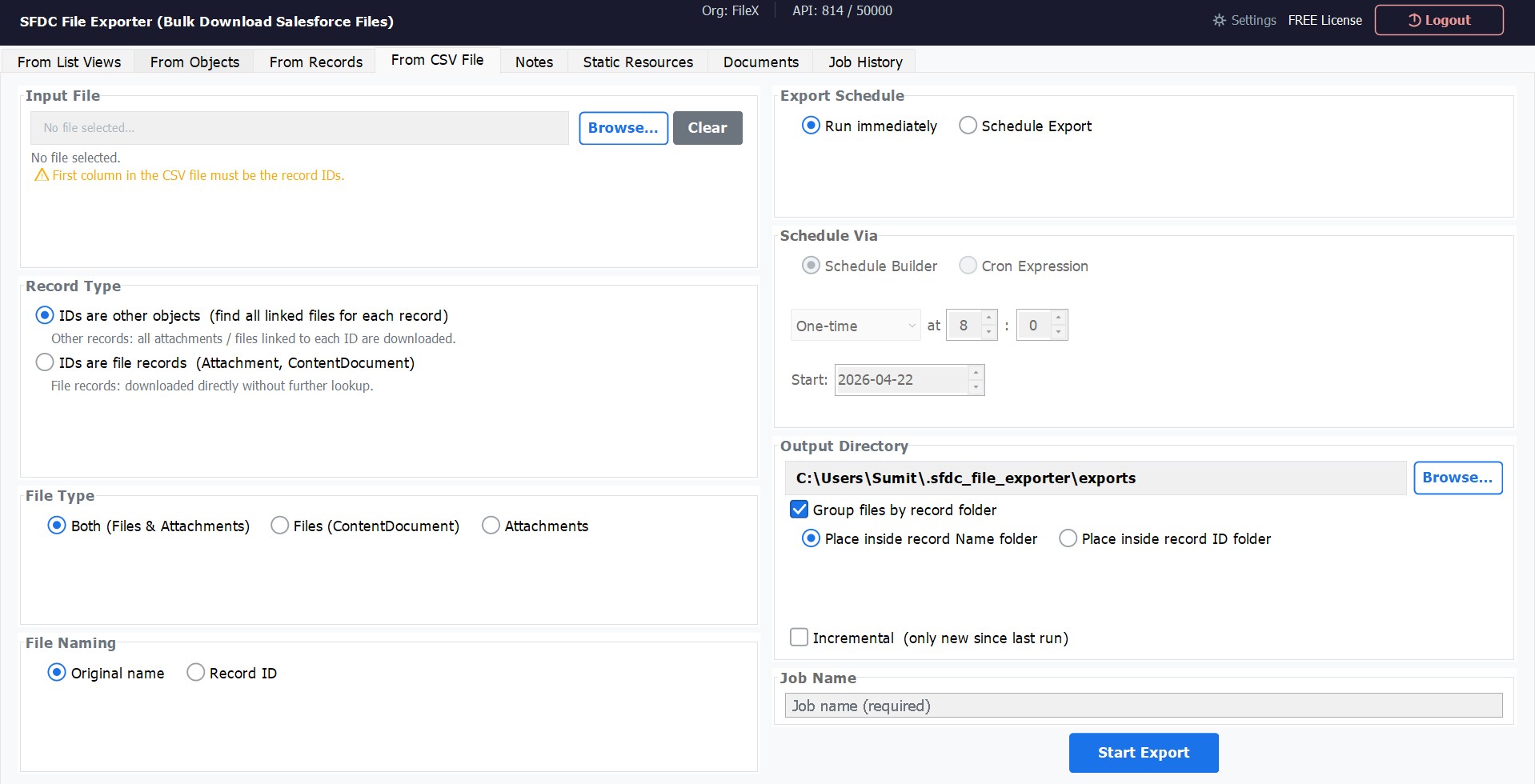
If you already have a list of Salesforce record IDs — from a report, data loader extract, or manual curation — upload them as a CSV and let SFDC File Exporter download every file associated with those records. This method is ideal when you need to export files for a specific, pre-determined set of records without navigating list views or building object-level filters.
CSV File Requirements
Before uploading your CSV, ensure it meets the following requirements:
- The first column must contain the Salesforce record IDs — additional columns are ignored.
- A header row is optional; the app will automatically detect and skip it if present.
- Both 15-character and 18-character Salesforce IDs are supported.
- Mixed ID types are allowed — you can include parent record IDs and file record IDs in the same CSV.
- Maximum recommended file size is approximately 100,000 rows for optimal performance.
CSV File Format
Your CSV must have the Record IDs in the first column. A header row is optional but recommended for clarity.
Id
001XXXXXXXXXXXXXXX
001YYYYYYYYYYYYYYY
003ZZZZZZZZZZZZZZZAccepted ID Types
| ID Type | Description | Example Prefix |
|---|---|---|
| Parent Record ID | ID of any standard or custom object record (Account, Contact, Case, etc.). The app fetches all files attached to each record. | 001, 003, 500, a0B |
| ContentDocument ID | Direct ID of a Salesforce File record. Downloads exactly that file without resolving parent relationships. | 069 |
| Attachment ID | Direct ID of a legacy Salesforce Attachment record. Downloads exactly that attachment. | 00P |
Record ID field, export it
as CSV, and upload it directly to SFDC File Exporter — no further formatting required.
How to Use
Select Export Type
In the main navigation, choose Export from CSV to open the CSV export panel.
Upload Your CSV
Click Browse and select your CSV file. The app previews the IDs found and displays the total record count detected in the file.
Select ID Type
Choose whether the CSV contains Parent Record IDs (the app fetches all attached files for each record) or File Record IDs (downloads those exact ContentDocument or Attachment records directly).
Choose File Type & Output Folder
Select Files (ContentDocument / Salesforce Files), Attachments, or both, then click Browse to set your destination folder.
Export
Click Export. The app processes each ID from your CSV and downloads all matching files to the selected output folder. A real-time progress bar shows the current status.