Export Salesforce Notes (Note object)
Export all Salesforce Notes from your org in the format that best suits your workflow — plain text, PDF, or Microsoft Word. Merge all notes into a single document or export each note as its own file. Use the group-by-record option to organise output into sub-folders, one per parent record.
ContentNote object with full rich-text support.
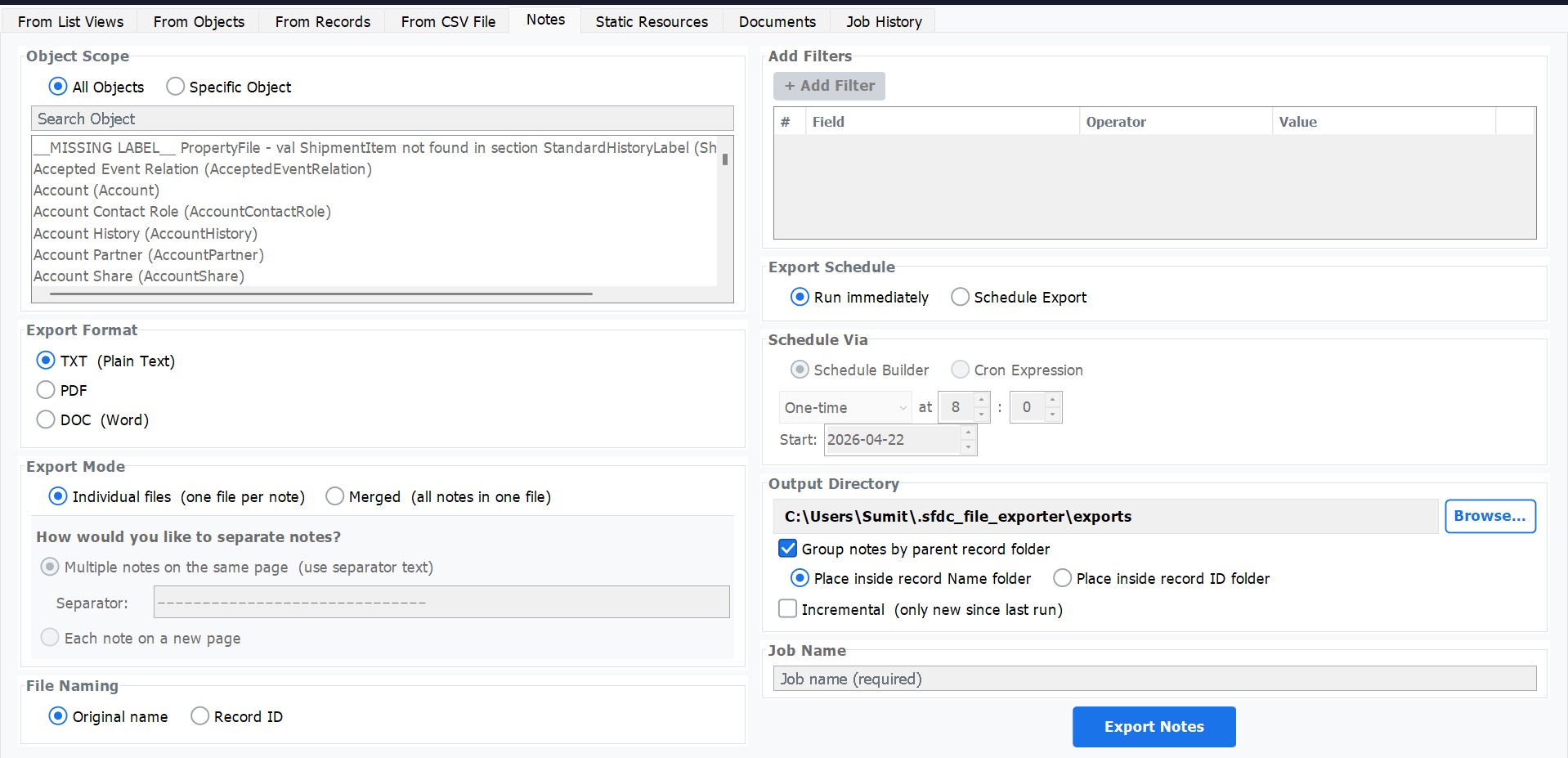
Output Formats
| Format | Best For |
|---|---|
TXT |
Plain-text archiving — easy to search, index, and process with other tools. |
PDF |
Sharing, printing, and compliance archiving where a fixed layout is required. |
DOC (Word) |
Editing, merging into reports, or further processing in Microsoft Word. |
How to Use
Select Export Type
Choose Export Notes from the main menu or the sidebar navigation.
Choose Output Format
Select TXT, PDF, or DOC from the format dropdown. All notes in the export will be saved in this format.
Choose Export Mode
Individual files — each note is saved as a separate file, named after the note title.
Merged — all notes are combined into a single file with a configurable separator inserted between each note.
Set Separator (Merged Mode Only)
Enter the separator text that will appear between notes in the merged file — for example, ---, ========, or any custom string you prefer.
Group by Parent Record (Optional)
Toggle Group by Record to create a sub-folder per parent record inside the output directory. Each record's notes are placed inside its own named folder — useful when notes span multiple accounts, cases, or opportunities.
Set Output Folder & Export
Click Browse to choose a destination folder, then click Export to begin the download.
Export Enhanced Notes (ContentNote object)
Enhanced Notes is the modern Salesforce notes system introduced with Lightning Experience. Unlike classic
Notes, Enhanced Notes store their content as rich text — supporting bold, italic, underline, bullet lists,
numbered lists, tables, and inline images. They are stored in the ContentNote object, which
is part of the Salesforce Files platform.
SFDC File Exporter preserves this rich-text formatting when exporting Enhanced Notes. You can export each note as a standalone HTML or PDF file, or consolidate all notes into a single Excel workbook for bulk review and archiving.
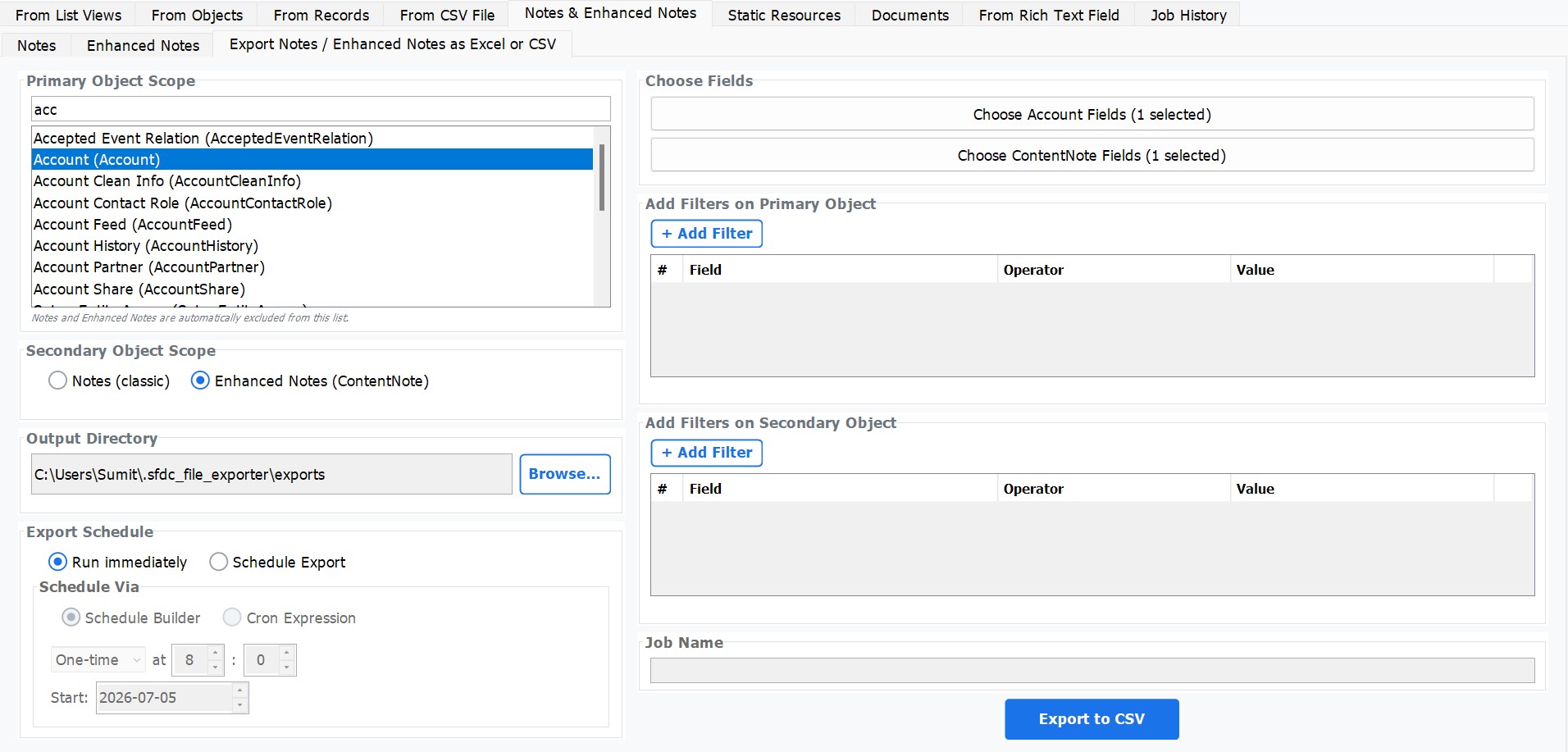
Output Formats
| Format | Description | Best For |
|---|---|---|
HTML (per note) |
Each note exported as an individual .html file with all rich-text formatting intact — headings, lists, tables, and inline images. |
Web archiving, viewing in any browser, further HTML processing. |
PDF (per note) |
Each note rendered to a standalone PDF with formatting preserved — fonts, layout, and list styles match the Salesforce display. | Sharing, printing, and compliance archiving. |
Excel (all notes) |
All Enhanced Notes exported to a single .xlsx workbook — one row per note, with columns for title, body, parent record, created date, and last modified date. |
Bulk review, data analysis, migration preparation, and management reporting. |
How to Use
Select Export Type
Choose Export Enhanced Notes from the main menu or the sidebar navigation.
Filter by Object (Optional)
Select a specific Salesforce object — such as Account, Case, Opportunity, or any custom object — to export only the Enhanced Notes linked to records of that type. Leave this field blank to export all Enhanced Notes across the entire org.
Choose Output Format
Select the format for the exported notes:
HTML per note — one HTML file per note, preserving full rich-text formatting.
PDF per note — one PDF file per note, rendered from the rich-text content.
Excel workbook — all notes in a single .xlsx file for bulk review.
Group by Parent Record (Optional — HTML and PDF modes)
Toggle Group by Record to organise exported files into sub-folders named after each parent record. All notes attached to an Account named Acme Corp, for example, will be placed in an Acme Corp sub-folder inside the output directory.
Set Output Folder & Export
Click Browse to choose a destination folder, then click Export to begin. A progress indicator shows the number of notes processed and any notes skipped due to access restrictions.
Classic Notes vs Enhanced Notes
Salesforce supports two distinct note systems. The table below summarises the key differences so you can confirm which export mode applies to your org.
| Attribute | Classic Notes | Enhanced Notes |
|---|---|---|
| Salesforce object | Note |
ContentNote |
| Introduced | Salesforce Classic (legacy) | Lightning Experience (modern) |
| Content type | Plain text only | Rich text — bold, italic, lists, tables, inline images |
| Export formats | TXT, PDF, DOC |
HTML, PDF, Excel |
| Rich-text preserved | No — content is plain text | Yes — formatting is preserved in HTML and PDF output |
| Bulk export to Excel | No | Yes — all notes in one workbook |
| Group by parent record | Yes | Yes (HTML and PDF modes) |
| Individual files per note | Yes | Yes (HTML and PDF modes) |
| When to use | Orgs on Salesforce Classic, or orgs that have not enabled Enhanced Notes. Use when your notes are stored in the legacy Note object. |
Orgs on Lightning Experience with Enable Notes turned on in Salesforce Setup. Use when your notes are stored as ContentNote records. |
ContentNote). If notes are plain text only, your org uses the Classic Notes
(Note) system.