Export Files from a Single Salesforce Record
The Export Single Record mode lets you pinpoint one specific Salesforce record by name and download every file attached to it in a single operation. Instead of scoping an entire object or list view, you search for the exact record you need and export only its files — making this ideal for targeted extracts, support escalations, or one-off data requests.
You can optionally extend the export to include files from all related child records, traversing the standard Salesforce relationship graph to pull the full file hierarchy in a single run. For example, exporting an Account record can also capture files attached to every Contact, Case, and Opportunity linked to that Account.
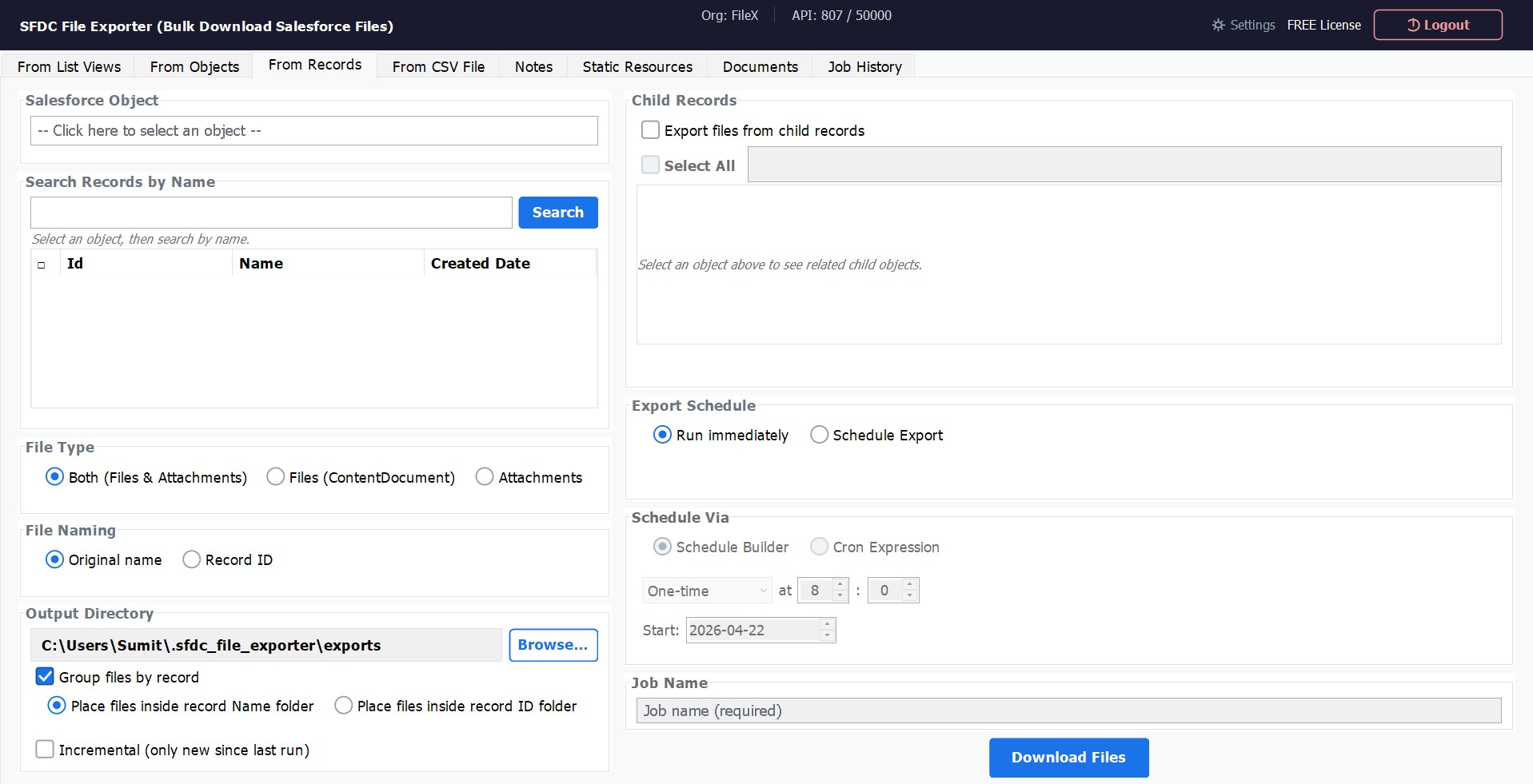
How to Use
Follow these six steps to export files from a specific Salesforce record.
Select Export Type
Open SFDC File Exporter and navigate to the Export Single Record tab from the main navigation panel. This mode is listed under the Export Methods group.
Select the Salesforce Object
Choose the object type that the target record belongs to — for example, Account,
Contact, Opportunity, Case, or any custom object available
in your org. The app populates the dropdown from your connected Salesforce org automatically.
Search for the Record
Type the record name (or part of it) into the search field. Matching records from the selected object appear in the results list as you type. Click the record you want to select it. The record's name and ID are shown as confirmation before you proceed.
Include Child Records (Optional)
Toggle Include Child Records to extend the export beyond the selected record itself. When enabled, the app traverses all standard master-detail and lookup relationships defined on the object and pulls files from every related child record — for example, all Contacts, Cases, and Opportunities linked to the selected Account. See the Child Records section below for full details.
Choose Folder Grouping
Select how exported files are organised on disk. Choose By Record Name to create
sub-folders using the record's display name (e.g., Acme Corp/), or choose
By Record ID to use the 18-character Salesforce ID as the folder name
(e.g., 001XXXXXXXXXXXXXXX/). When child records are included, each child's
files are placed in their own named sub-folder within the export directory.
Set Output Folder and Export
Click Browse to choose the destination folder on your machine where the files will be saved. Then click Export. A real-time progress bar tracks the download. When complete, a summary shows the total number of files downloaded and any records skipped (e.g., records with no attached files).
Child Records
Enabling Include Child Records instructs SFDC File Exporter to traverse the standard Salesforce master-detail and lookup relationships defined on the selected object, and to pull files from every related object that is a child of the selected record.
For example, when you export an Account record with child records enabled, the app
automatically queries and downloads files attached to:
How Relationship Traversal Works
SFDC File Exporter uses the Salesforce Metadata API to discover the complete set of child relationships for the selected object at runtime — it does not rely on a static, hardcoded list. This means the feature works correctly with custom objects and custom relationships specific to your org.
For each child relationship discovered, the app issues a SOQL query to find all related records, then
downloads every ContentDocument (Files) and Attachment associated with those
records. Files are saved into sub-folders named after each child record, nested inside the parent export
folder.
Example Folder Structure
With Group by Record Name and child records enabled, the exported folder structure for an Account named Acme Corp would look like this:
Acme Corp/
  contract_signed.pdf
  nda_2024.docx
  Contacts/
    John Smith/
      headshot.png
    Jane Doe/
      resume.pdf
  Cases/
    Case-00123/
      screenshot_bug.png
      error_log.txt
  Opportunities/
    Q2 Renewal/
proposal_final.pptxRelationship Types Supported
| Relationship Type | Description | Included? |
|---|---|---|
Master-Detail |
Child records whose lifecycle is tied to the parent (e.g., Order Line Items on an Order). | Yes |
Lookup |
Child records linked to the parent via a lookup field (e.g., Contacts, Opportunities on an Account). | Yes |
External Lookup |
Relationships to external objects via Salesforce Connect. | No |